Google Chrome
- Connect the Speechmike to the desktop/laptop
- Open Google Chrome and login to Clinic to Cloud
- Open a consult or create letter from the schedule
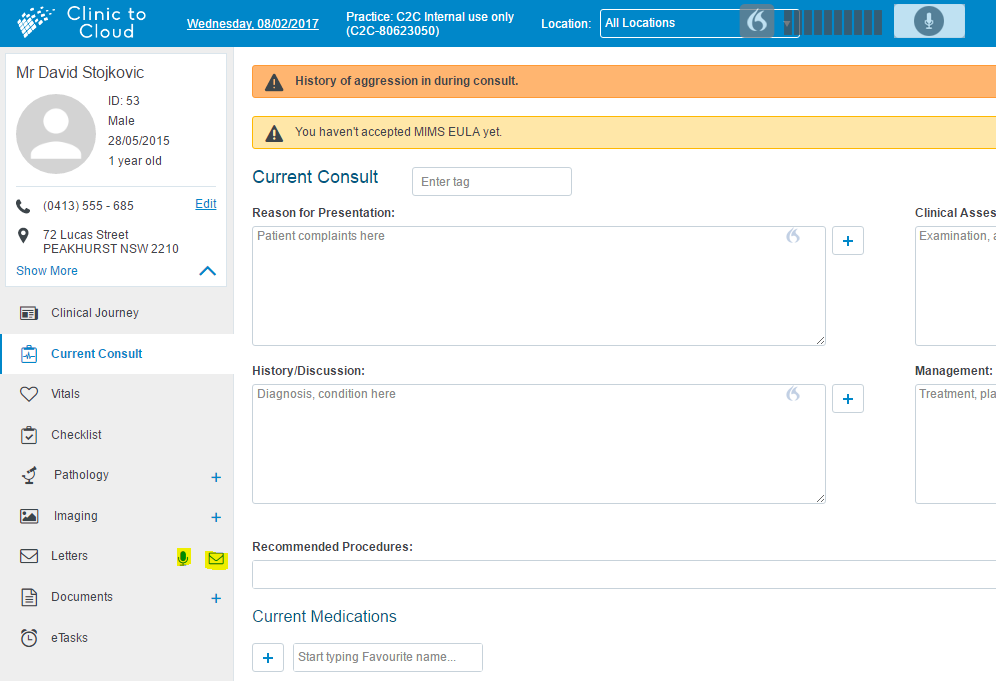
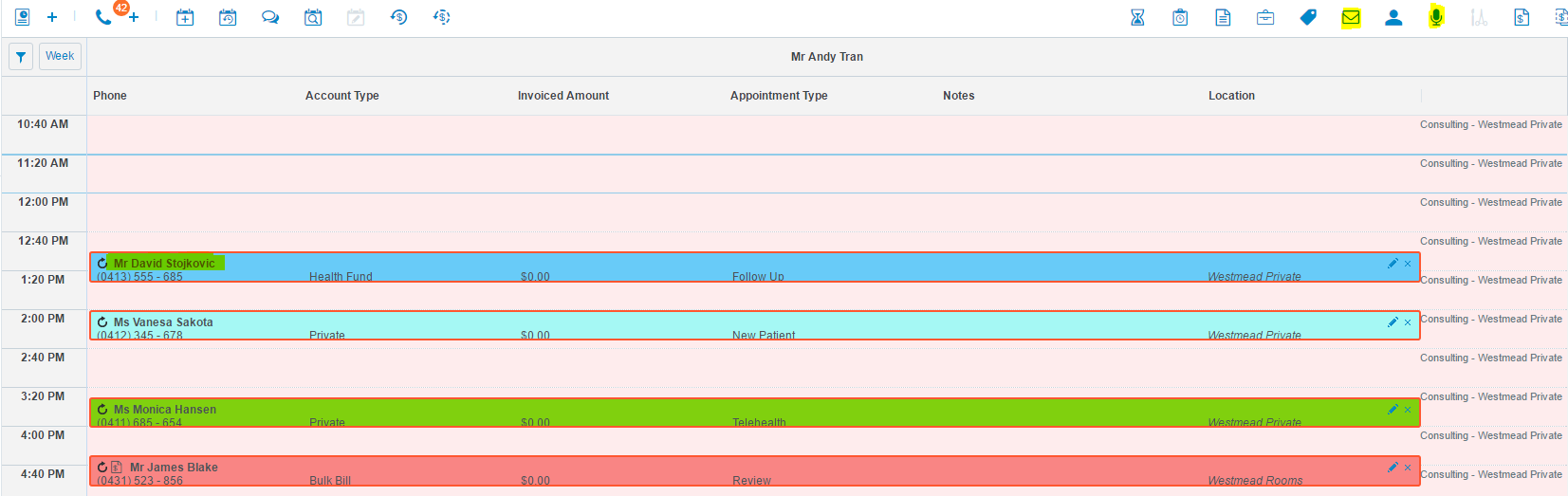
- Select the mode you wish to use
 or
or 
- Turn on VR (Voice Recognition) or

- Ensure the Speechmike is pointing to the browser by going to top right hand side and check permission is “ALLOW” and “Speechmike”
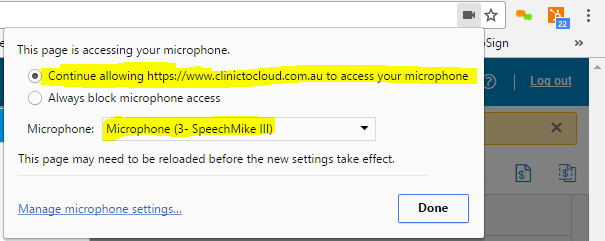
7. Refresh the web browser
Tips & Trick
- It’s also important to check the Speechmike setting is correct.
Here are the steps below:
- Go to sound settings

- Right click on

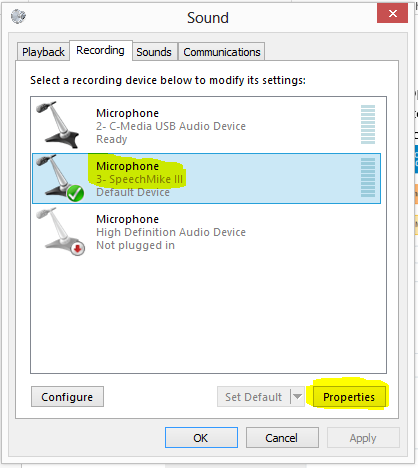
- Select “Recording devices”
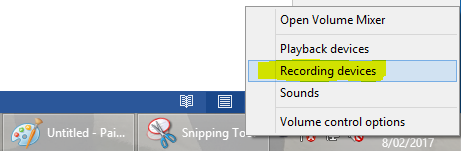
- Select “Speechmike” then go to “Properties”
- Go to “Levels” then move the sound bar to 50-70%
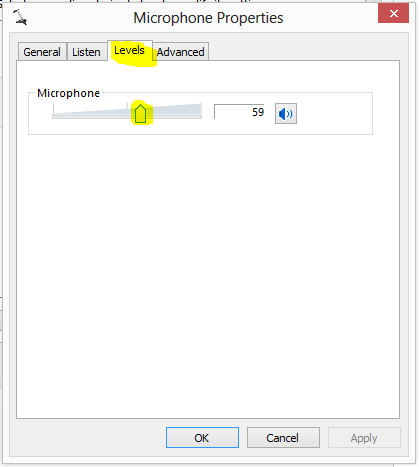
- Select “Ok”